Looking for free meeting transcription and wondering whether Teams, Zoom or Google Meet can do it without paying a cent? The short answer: the built-in transcription on all three platforms comes with paid business licenses (Microsoft 365, Zoom Pro, Google Workspace), not with their free versions. If your company already pays for those, it’s “free” for you and it’s the best option. If not, third-party tools like Otter, Notta, tl;dv, Fireflies or Granola have free plans, with minute caps and, most of the time, a bot that joins your call.
And there’s a blind spot almost every guide skips: the in-person meeting, around a real table. That’s where none of these tools really works. In this guide, updated September 2026, I walk you through each tool step by step, its real limits, and then my fix for in-person meetings.
Free meeting transcription: what to know before you start 📋
Before you start clicking around, keep three rules in mind. They’ll save you an hour:
- “Free” usually means “included in your license”. On Teams, Zoom and Meet, transcription depends on your organization’s plan, not on your personal account.
- The organizer (or their admin) decides. If the option is grayed out, it’s usually not your fault: the admin has turned it off or the plan doesn’t include it.
- Free plans from third-party tools are capped: minutes per month, length per conversation, number of AI summaries. Fine for testing, rarely enough for daily use.
Microsoft Teams: turning on built-in transcription 🟦
Teams offers fairly reliable live transcription with speaker attribution. But it doesn’t exist in Teams free (the personal version): according to Microsoft’s documentation, it’s reserved for business and education licenses such as Microsoft 365 Business Basic, Business Standard, Business Premium, Office 365 E1 or A1 and above.
Step by step
- During the meeting, click More actions (the “…”) in the meeting controls.
- Choose Record and transcribe, then Start transcription.
- Check the suggested spoken language (it has to match the language actually spoken, or the text will be useless).
- After the meeting, find the transcript in the meeting’s Recap tab or in the meeting chat, and download it if you need to.
The limits
Everyone in the meeting gets notified that transcription has started, which is a good thing. However, only the organizer and people from the same organization can start it: an external guest or anonymous attendee can’t. Microsoft lists up to 41 transcription languages. And the “intelligent recap” (the AI summary with key points and tasks) isn’t part of the basic license: it requires Teams Premium or a Microsoft 365 Copilot license.
Zoom: audio transcripts and AI Companion 🎥
On Zoom, two features often get mixed up: audio transcription of cloud recordings, and meeting summaries by AI Companion. Neither is available on the free Basic plan, which also caps group meetings at 40 minutes.
Step by step (paid account)
- Make sure your account is at least Pro (or Business, Education, Enterprise) and that cloud recording and audio transcript are enabled in your web settings.
- In the meeting, click Record, then Record to the cloud.
- Once the meeting ends, Zoom processes the audio and emails you when the recording and transcript are ready.
- For an AI summary, the host clicks the AI Companion icon and ticks meeting summary (or sets it to start automatically).
The limits
Audio transcription works in 19 languages according to Zoom’s help center. On a free account, you’re left with local recording on your computer, which you’ll then have to transcribe somewhere else. Automated captions and saving them depend on account settings: don’t rely on them for proper meeting minutes.
Google Meet: transcripts and Gemini 🟩
Google Meet is the strictest of the three. Live captions are free, but they aren’t saved. The actual Transcripts feature is limited to paid Google Workspace editions (Business Standard and Plus, Enterprise, Workspace Individual, some Education plans): it isn’t available on a free Gmail account.
Step by step
- Join the meeting from a computer or an Android device (you can’t start it from the iPhone app).
- Click Meeting tools, then Transcripts.
- Select Start transcription and confirm.
- After the meeting, the Google Doc lands in the organizer’s Google Drive, in the Meet recordings folder.
Gemini “Take notes for me”
Gemini can also write meeting notes with a summary and action items, saved to Drive. Since late June 2026, Google has opened it to Google AI Pro and Ultra personal subscribers, on top of eligible Workspace customers. So it still isn’t free.
The limits
Meet transcripts support only 8 languages according to Google’s help center: English, French, German, Italian, Japanese, Korean, Portuguese and Spanish. Only the host or a co-host can turn it on when host management is active, and the meeting chat isn’t included.
Free third-party tools: Otter, Notta, tl;dv, Fireflies, Granola 🤖
If your platform offers nothing without a license, third-party meeting assistants take over. Here are their free plans as the vendors list them in September 2026 (these limits change often, so double-check before you commit).
Otter: the best-known
- How: create an account, connect your calendar, and let the assistant join your Zoom, Teams or Meet calls. The mobile app can also record a conversation directly.
- Free plan: 300 minutes a month, 30 minutes max per conversation, 3 file imports over the lifetime of the account.
- Languages: English, Spanish, French, German, Japanese and Chinese.
Notta: very easy to pick up
- How: paste the meeting link or connect your calendar, and Notta joins and transcribes.
- Free plan: 120 minutes a month, 10 AI summaries a month, and very short sessions (the pricing page says 3 minutes per conversation).
tl;dv: generous at first, then throttled
- How: install the extension or connect your calendar, and the bot records Meet, Zoom or Teams.
- Free plan: full AI summaries on your first 10 meetings only, then limited to the first 10 minutes of each meeting. Recordings kept 3 months, 3 hours max per meeting. These limits apply to the lifetime of the account.
Fireflies: unlimited transcription, tiny storage
- How: connect your calendar and the “Fred” assistant joins your calls.
- Free plan: transcription advertised as unlimited, but 400 minutes of storage per team and only a handful of AI credits for summaries.
Granola: no bot, but built for your computer
- How: install the app, it captures your device audio during the video call and writes clean notes.
- Free plan: AI notes included, but meeting history limited to 30 days. Big plus: no visible bot in the meeting.
The real problem with bots
Otter, Notta, tl;dv and Fireflies work by adding a robot participant to your meeting. In practice, some clients refuse the bot (or the organizer removes it), the platform must allow external participants, and everyone can see a third-party tool is recording. That’s transparent, but it can cool down a sensitive conversation.
Licenses, languages, bots: the shared limits ⚠️
Bottom line: no free meeting transcription comes with zero strings attached. Every option falls short somewhere:
- Licenses: Teams, Zoom and Meet keep transcription for paid plans, and AI summaries (Copilot, AI Companion, Gemini) often cost even more.
- Languages: Meet stops at 8 languages, Otter at 6. For a meeting in Dutch or Italian, several tools are out.
- Bots: they have to be let into the meeting, and they only hear what goes through the call.
- Caps: minutes per month, length per conversation, limited history.
- Consent: recording and transcribing people means telling them. I’ve covered the US and UK rules in my article is it legal to record a conversation?
But the biggest limit is somewhere else: all these tools assume the meeting happens on a screen.
What about in-person meetings? None of these tools covers them 🏢
Picture a team meeting in a conference room, a client meeting at their office, a board meeting, a site visit or an HOA meeting. Nobody opens Teams, nobody starts Zoom. Result: no bot to invite, no built-in transcript, nothing.
Workarounds exist: leave your phone on the table with the Otter app (30 minutes max on the free plan), or start a “ghost” video call with one laptop in the middle of the room. Either way, the mic struggles with people sitting further away, your phone is tied up, and you can lose everything if the app closes or a notification interrupts the recording.
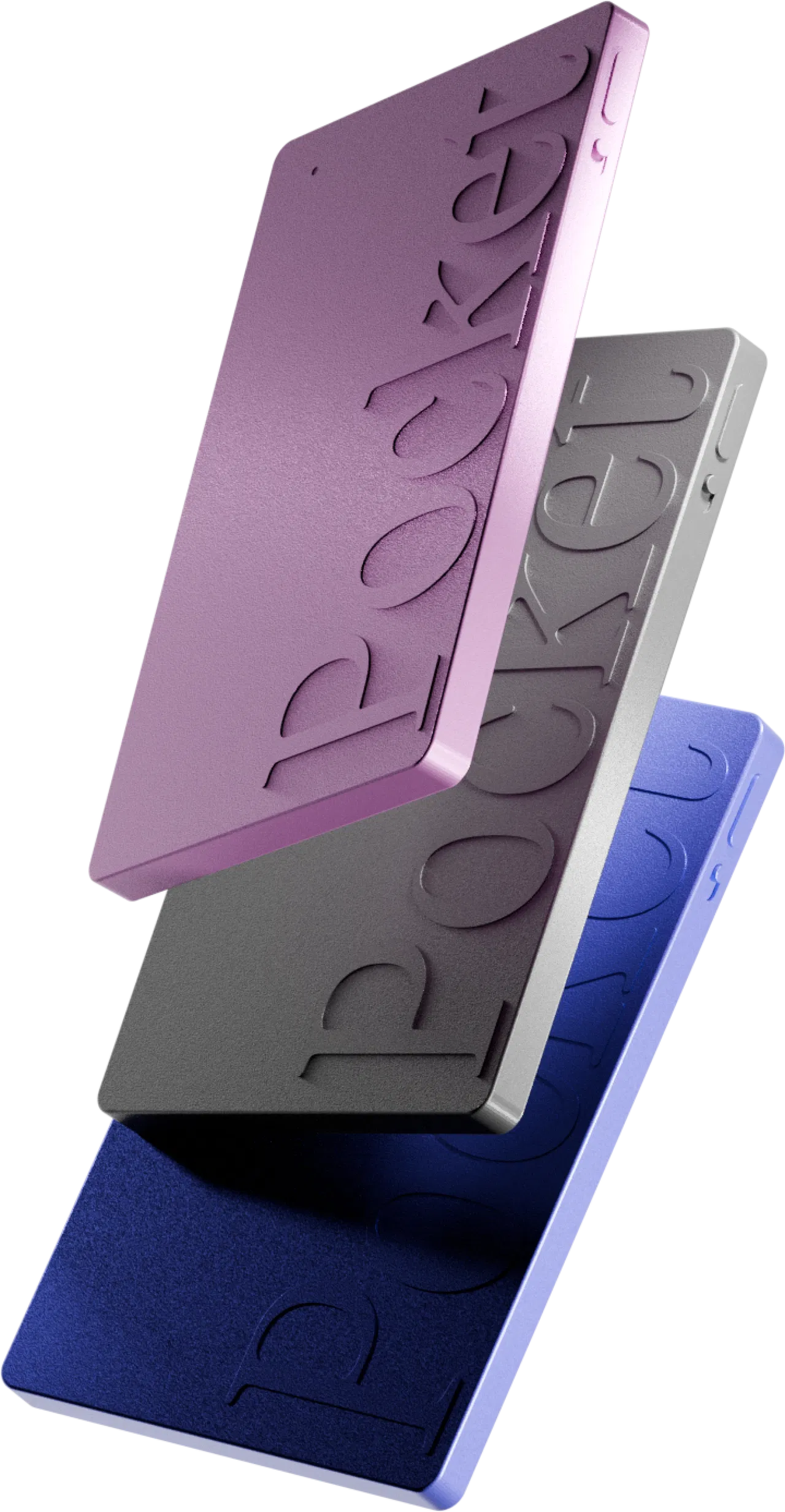
That’s exactly the situation I use Pocket for, an AI recorder the size of a credit card. I put it on the table, press the button once, and join the conversation normally. Its 2 studio mics pick up the room up to 15 meters (49 ft) in a quiet setting, with speaker separation. It records locally, even without a connection, then syncs with the app.
What matters here is that transcription is unlimited with no subscription: you pay for the device once ($129, around €129 in Europe, with up to 45% off right now), and you get transcripts, summaries, tasks, mind maps and “Ask Pocket” to query your past meetings. No bot, no Microsoft or Google license, no minute cap. An optional Pro plan ($19.99/month) adds higher-accuracy transcription and unlimited history, among other things, but I didn’t need it to start.
I’ll be honest about its limits, which I cover in my full Pocket review: it isn’t built for video calls (for Teams or Zoom, stick with the built-in tool), transcription gets worse in very noisy places, and you need your smartphone to sync. To compare it with other devices, see my comparison of AI voice recorders with transcription and Plaud vs Pocket vs Otter.
The recap table: which tool for which meeting? 📊
Who is it for? My real-life cases 🎯
- You mostly work on video calls at a company with Microsoft 365 or Workspace: turn on the built-in transcription, it’s the cleanest option. Only add Copilot or Gemini if automatic summaries actually save you time.
- You’re a freelancer on a free account: Otter or Granola on the free plan for a few meetings a month, as long as you accept the caps.
- You go from one in-person meeting to the next (sales, consulting, field management, property management, nonprofits): a recorder like Pocket, because no video tool covers you.
- You do a mix of both: that’s me. Built-in tool for video calls, Pocket for everything else, and no meeting without notes anymore.
- You also want a record of your phone calls: check out my guide on how to record calls on iPhone.
FAQ – Free meeting transcription ❓
Is there truly free meeting transcription?
Yes, with limits. The free plans of Otter (300 minutes a month), Notta, tl;dv, Fireflies or Granola let you transcribe video calls without paying, with caps on minutes, summaries or history. Built-in transcription in Teams, Zoom and Meet depends on a paid license.
Can Teams free transcribe a meeting?
No. Teams live transcription is reserved for Microsoft 365 business and education licenses. With Teams free, you need a third-party tool.
Can I transcribe a Google Meet call with a free Gmail account?
Not with the built-in feature: it requires a paid Google Workspace edition (or a Google AI Pro subscription for Gemini notes). Live captions are free but aren’t saved.
How do I transcribe an in-person meeting for free?
You can record with an app like Otter on your phone, within the 30-minute-per-conversation limit of the free plan. For long, regular meetings, a subscription-free AI recorder like Pocket is more reliable: once you’ve bought it, transcription is unlimited.
Do I need to tell people before transcribing?
Yes. Teams and Meet notify attendees automatically, and bots are visible. In person, it’s on you to tell the people in the room. The detailed rules are in my article on recording consent laws.
My verdict: the right method for each meeting 🏁
For free meeting transcription on video calls, start with what your license already gives you: Teams, Zoom or Meet do the job very well when your company pays for the plan. Without a license, a free Otter or Granola plan will get you by, as long as you accept the caps and, often, the bot.
For in-person meetings, though, none of these tools is built for the job. That’s where Pocket makes sense: a one-time purchase, unlimited transcription with no subscription, and meeting notes ready by the time you leave the room. It’s my pick for everything that happens off screen.