You want a record of an important call (a chat with your bank, a negotiation, a client’s instructions) and you’re wondering how to record calls on iPhone? I’ve gone through Apple’s own support pages so you don’t have to.
The short answer: since iOS 18.1, iPhone can record calls natively, right inside the Phone app, and iOS 26 builds on it with transcripts and Apple Intelligence summaries. If you’re in the US, the UK or Canada, you probably already have the button. But there are real catches: both people hear an announcement, it only covers Phone app calls (not WhatsApp or Zoom), transcripts only exist in a handful of languages, and Apple states plainly that the feature is not available in the European Union and a list of other countries, still the case with iOS 27. When the built-in button isn’t enough, the fix I use is a recorder with a contact mic: Pocket.
Below, I walk you through the built-in method step by step, then its limits, then how I record my own calls without relying on iOS.
How to record calls on iPhone: the built-in method, step by step 📱
Here’s the official process as Apple describes it in the iPhone User Guide. It works on iPhones running iOS 18.1 or later, in regions where the feature is offered.
Start recording
- Open the Phone app and make your call (or answer an incoming one).
- During the call, tap the More button (three dots), then Call Recording. On some versions, a record button sits directly in the top-left corner of the call screen.
- Both people on the call hear an audio notice that the call is being recorded. You can’t turn it off.
- A timer stays on your screen for as long as the recording runs.
- To stop, tap the stop button or simply hang up.
Find and play back the recording
Your iPhone saves each recording automatically in a Call Recordings folder in the Notes app. When the call ends, a notification offers to show you the recorded call. Inside the note you can play the audio, view the waveform, save the file to the Files app or share it. Heads-up: deleting the audio also deletes the transcript.
Turn the feature off
Call recording is on by default. To disable it: Settings > Apps > Phone > Call Audio Recording, then switch it off.
Transcripts and Apple Intelligence summaries in iOS 26 🧠
This is where the feature gets genuinely useful. In supported languages, your iPhone automatically transcribes the call inside the note and labels who said what. Tap any sentence to jump to that exact moment in the audio, or search the transcript for a word. iOS 26 also added live transcripts and Live Translation for calls in some languages.
If your iPhone supports Apple Intelligence (iPhone 15 Pro, 15 Pro Max, the iPhone 16 lineup and newer), a Summary button gives you the gist of the call in a few lines.
The catch is language coverage. According to Apple’s feature availability page (checked in September 2026):
- Call transcription: English (US, UK, Canada, Australia, India, New Zealand, Singapore), Spanish (Mexico, US), Portuguese (Brazil), Japanese, Korean, Mandarin and Cantonese. No French, German, Italian or Dutch.
- Call transcript summaries: an even shorter list, mainly English, Spanish (Mexico, US), Japanese, Korean and Traditional Chinese.
- Apple itself warns you to check a transcript’s accuracy before relying on it.
So if you’re a US or UK user calling in English on a recent iPhone, you get a solid free tool. Step outside that box and things fall apart fast.
The limits of the built-in method ⚠️
Here’s where it breaks down, point by point. Honestly, this is the most important part of the article.
1. Not available everywhere (the EU is out)
Apple’s support page lists the places where call recording isn’t offered: the European Union, plus Russia, Turkey, Saudi Arabia, the UAE, Egypt, Morocco, South Africa, Nigeria and several others. The feature briefly appeared in the iOS 18.1 beta in Europe, then vanished, and no update has brought it back. If you travel a lot, work with EU colleagues or bought your iPhone in Europe, don’t count on it. Changing your region to get around it isn’t a method Apple documents, and I wouldn’t rely on it for anything serious.
2. An announcement you can’t control
Both people hear the recording notice. That’s good for transparency, but it can make a routine call feel formal (you should still tell the other person yourself; more on that below).
3. Phone app calls only
The feature covers calls made in the Phone app (and, according to several published tests, FaceTime audio calls). WhatsApp, Teams, Zoom and video calls aren’t covered, so you need something else for those.
4. Transcripts and summaries depend on language and model
No transcript at all if you speak a language outside Apple’s list, and summaries only on Apple Intelligence iPhones. An older iPhone gets audio only.
5. Everything ends up in Notes
Recordings pile up in the Notes app, with no extracted to-dos and no way to search across all your calls at once. It works, but it isn’t a work tool.
Other ways to record calls on iPhone 🔧
When the built-in button is missing or not enough, here are the realistic options, from the most makeshift to the most comfortable.
Speakerphone and a second device
The free route: put the call on speaker and record it with another device (iPad, Mac, old phone) using Voice Memos or Notes. It works, but you get echo, room noise and a thinner voice on the other end, and it’s a no-go in an open-plan office or on the street.
Third-party apps
The App Store has call recording apps such as TapeACall. Most work through a three-way call: you merge your call with the app’s recording line. Your carrier has to support call merging, the audio passes through a third-party server, and nearly all of them run on a monthly subscription. Rev Call Recorder, often recommended, is US only.
A recorder with a contact mic
This type of device picks up the call through the phone’s vibrations, with no speakerphone. Not every pocket recorder does this: according to published specs and reviews, the Plaud NotePin doesn’t record phone calls, and reviewers report the Plaud Note Pro needs speakerphone for calls. That exact use case is why I chose Pocket.
My fix: recording iPhone calls with Pocket 🎙️
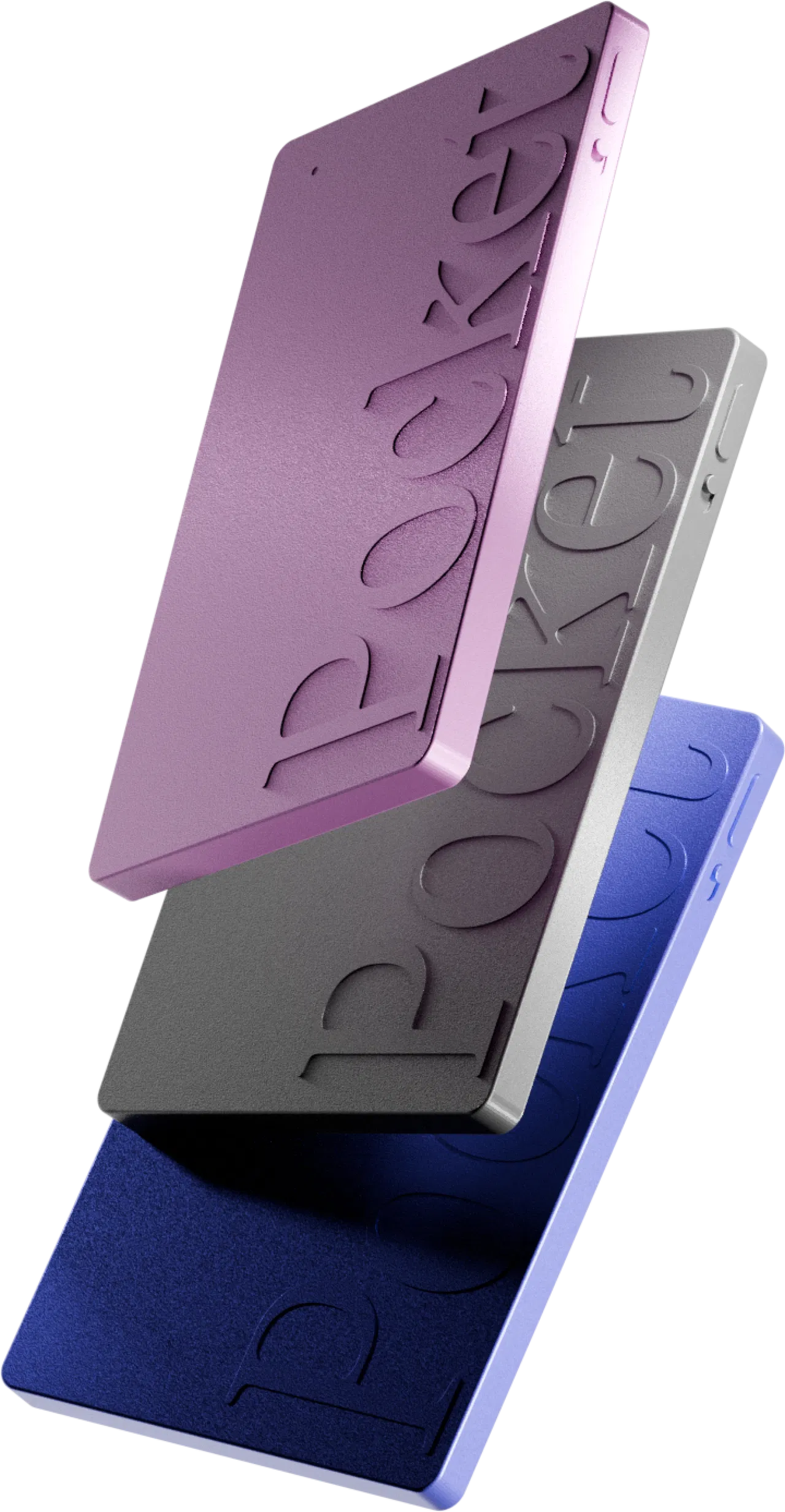
Pocket is a credit-card-sized AI recorder (52 g) that attaches magnetically to the back of your phone via MagSafe. An adhesive patch is included if your phone isn’t MagSafe compatible. What makes it special is its third microphone, a contact mic: stuck to the back of your iPhone during a call, it captures both sides of the conversation through the phone’s vibrations, without using the speaker. In my own use, the accuracy blew me away.
How I use it on a call
- I snap Pocket onto the back of my iPhone (it holds perfectly on a magnetic case).
- I flip the side switch to call mode.
- One press of the button: recording starts, confirmed by a light and a vibration.
- I make my call as usual, phone to my ear.
- A second press stops it. Pocket records locally (64 GB on board), even with no signal.
- I open the app: it syncs over Bluetooth or through “Fast Transfer” over Wi-Fi.
What I get after the call
This is the real difference from the built-in method. From a single call, Pocket gives me the audio, a timestamped transcript where I can name each speaker, a structured summary, the list of tasks mentioned and, for complex conversations, a mind map. With “Ask Pocket” I can even query all my conversations at once: “What amount did the advisor quote me last week?”. And it works in any of 120+ languages, not just English.
I cover every feature in my full Pocket review, and the app itself in my guide to the Pocket AI app.
The price, with no subscription
Pocket costs around $129 (about €129 in Europe), with discounts of up to -45% right now, and above all no mandatory subscription: audio, transcription and summaries are unlimited on the free plan. The Pro plan (around $19.99/month) is optional, for high-accuracy transcription or unlimited summary history. I ran the one-year numbers in my no-subscription AI recorder comparison. Free shipping and a 30-day money-back guarantee.
Its limits, to be fair
- It’s built for phone calls and in-person conversations. For summarizing Teams or Zoom calls running on your computer, it’s awkward: there, Plaud and its desktop app keep the edge (I compare both in Pocket vs Plaud).
- In a very noisy place, transcription quality drops, as with any microphone.
- You need your phone nearby to sync.
What about the law? Always tell the other person ⚖️
A quick but essential reminder: whatever the method (built-in button, app or Pocket), recording a call means following consent rules. In the US they vary from state to state (some require everyone on the call to agree), and the UK has its own rules. The simple habit: say it at the start (“I’m recording this so I don’t miss anything, is that OK?”). Pocket doesn’t play an automatic notice the way iOS does, so it’s on you to tell people. I’ll cover the legal side in detail in a dedicated article soon.
Who is this for? My real use cases 🎯
- Admin calls: bank, insurance, IRS or HMRC, your doctor’s office. You keep the reference number and the exact amount quoted, no call-back needed.
- Freelancers and consultants: a client’s instructions over the phone turn straight into a task list.
- Sales reps and real estate agents: back-to-back calls, every detail findable with search.
- Hiring and interviews: a transcribed phone screen is a faithful record without taking notes.
- Personal use: a contractor’s quote, a relative walking you through paperwork.
And since Pocket also records in person (up to 15 m / 49 ft range), it replaces your voice recorder in meetings too. If you’re weighing other models, have a look at my ranking of the best pocket voice recorders.
Recap: which way to record calls on iPhone? 📊
FAQ – Recording calls on iPhone ❓
Why don’t I see the call recording button on my iPhone?
Check that you’re on iOS 18.1 or later and that the option is on in Settings > Apps > Phone. If your iPhone is set up in an EU country or another excluded region, the button won’t appear: Apple doesn’t offer the feature there, in iOS 18, iOS 26 or iOS 27.
Does iPhone tell the other person the call is being recorded?
Yes. With the built-in method, both people hear an audio notice as soon as recording starts. With a third-party app or an external recorder, there’s not necessarily any announcement, so it’s up to you to tell them.
Can I record a WhatsApp call on iPhone?
Not with the built-in feature, which covers Phone app calls. For WhatsApp and video calls you need a screen or device audio recording solution, or a tool made for online meetings.
Which languages get a call transcript?
According to Apple: English (several regions), Spanish (Mexico, US), Portuguese (Brazil), Japanese, Korean, Mandarin and Cantonese. Pocket transcribes in 120+ languages.
Where are call recordings saved on iPhone?
In the Notes app, in the “Call Recordings” folder. You can export the audio to the Files app or share it from the note.
Does Pocket work with an iPhone without MagSafe?
Yes, an adhesive patch is included for phones without MagSafe, and Pocket works with Android too.
My verdict 🏁
Apple’s built-in feature is well designed: one button, a clear notice, a file filed away in Notes, and a free transcript and summary if you speak English on a recent iPhone. For the occasional call in the US or UK, it’s all you need.
But if you want call recordings you can actually work with (tasks pulled out automatically, search across every call, any language, on any phone, including when you travel to Europe), my pick is Pocket. The contact mic captures both voices without speakerphone, and it’s a one-time purchase of around $129 with no subscription. Just tell the other person you’re recording, and you’ll never lose an important detail again.
This article may contain affiliate links: if you buy through them, I may earn a commission at no extra cost to you. Updated September 2026.